Host a game
Hosting means your computer runs the world and everyone else connects to it. Lobbify handles the networking, so there are no servers to rent and no ports to forward.
Host a game
Hosting means your computer runs the world and everyone else connects to it. Lobbify handles the networking, so there are no servers to rent and no ports to forward.
- 1
Install a Minecraft version
Open the Instances tab and choose Install version. Pick the Minecraft version you want to host — and a mod loader (Fabric, Forge, or NeoForge) if you're going modded. Lobbify downloads the game files and a matching Java runtime for you; there's nothing to set up by hand.
- 2
Create your room
Head to the Lobby and press Create a room. Name your room, pick the version you just installed, set Max players, and flip on Private room if you'd rather friends join by code than have the room listed for everyone. Press Create room — you're now the host.
- 3
Launch the game
In your room, press Launch game. Lobbify starts Minecraft with the exact version and pack your room is set to — nothing to install or match by hand. Once you're in and your world has loaded, the last step happens inside Minecraft: open your world to LAN so everyone can join.
Playing with mods?
Host with a modpack instance and your guests get the exact same pack automatically when they join — no links to send around. See installing a modpack.
Open your world to LAN
The final hosting step happens inside Minecraft: once your world has loaded, open it to LAN so Lobbify can bring your friends in. If you're using Lobbify's clearer labels, the buttons below read a little differently — we've noted both, so it works either way.
- 1
Open the game menu
Press Esc to open the game menu, then click Open to LAN. (with Lobbify's labels on, this button reads “Hosting”)
Minecraft · Game menu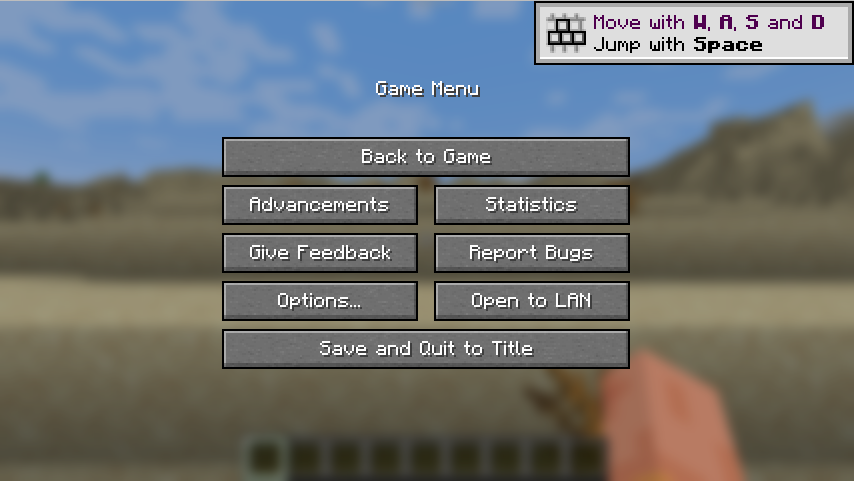
- 2
Start the LAN world
Pick your Game Mode, toggle Allow Commands if you want, then click Start LAN World. (with Lobbify's labels on, this screen is titled “Hosting Settings” and the button reads “Start Hosting”)
Minecraft · LAN world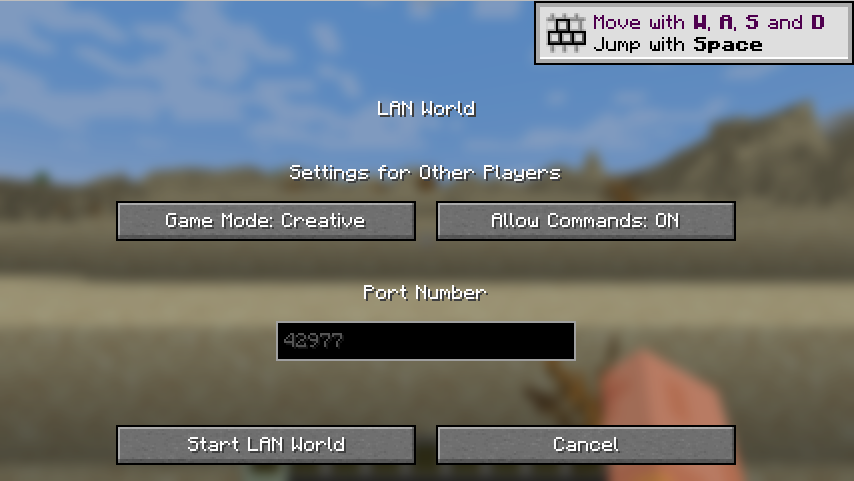
- 3
You're hosting!
You'll see “Local game hosted on port …” — that means you're hosting! Lobbify detects the port automatically, so friends in your room join with one click. No IP, port, or codes to share. (with Lobbify's labels on, this message reads “Started hosting for Lobbify on port …”)
Minecraft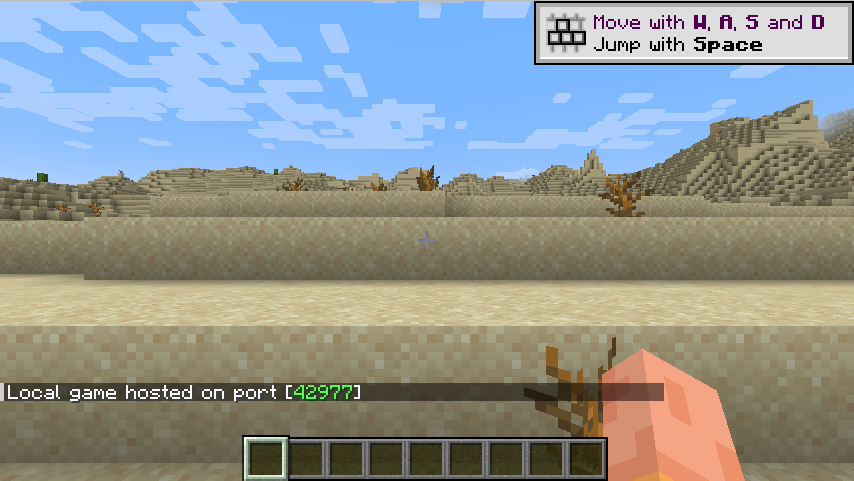
Lobbify didn't detect your LAN port?
Once in a while Minecraft opens to LAN on a port Lobbify can't read on its own. When that happens, check the port Minecraft prints in the in-game chat (something like Local game hosted on port 51234), open the session settings on your room's session panel, and type that port in by hand. Your guests connect the moment it's set.