Join a game
Joining takes about a minute. Lobbify installs whatever the host is running and drops you into their world — nothing to match up by hand.
Join a game
Joining takes about a minute. Lobbify installs whatever the host is running and drops you into their world.
- 1
Find the room
Open the Lobby to see the rooms that are live right now and press Join room on any open one. A private room shows Join by code instead — paste the code the host shared with you.
- 2
Launch the game
Once you're in the room, press Launch game. If you don't already have the host's exact version and modpack, Lobbify installs them first, then starts Minecraft for you — no matching versions by hand.
- 3
Find the room in Minecraft's Multiplayer list
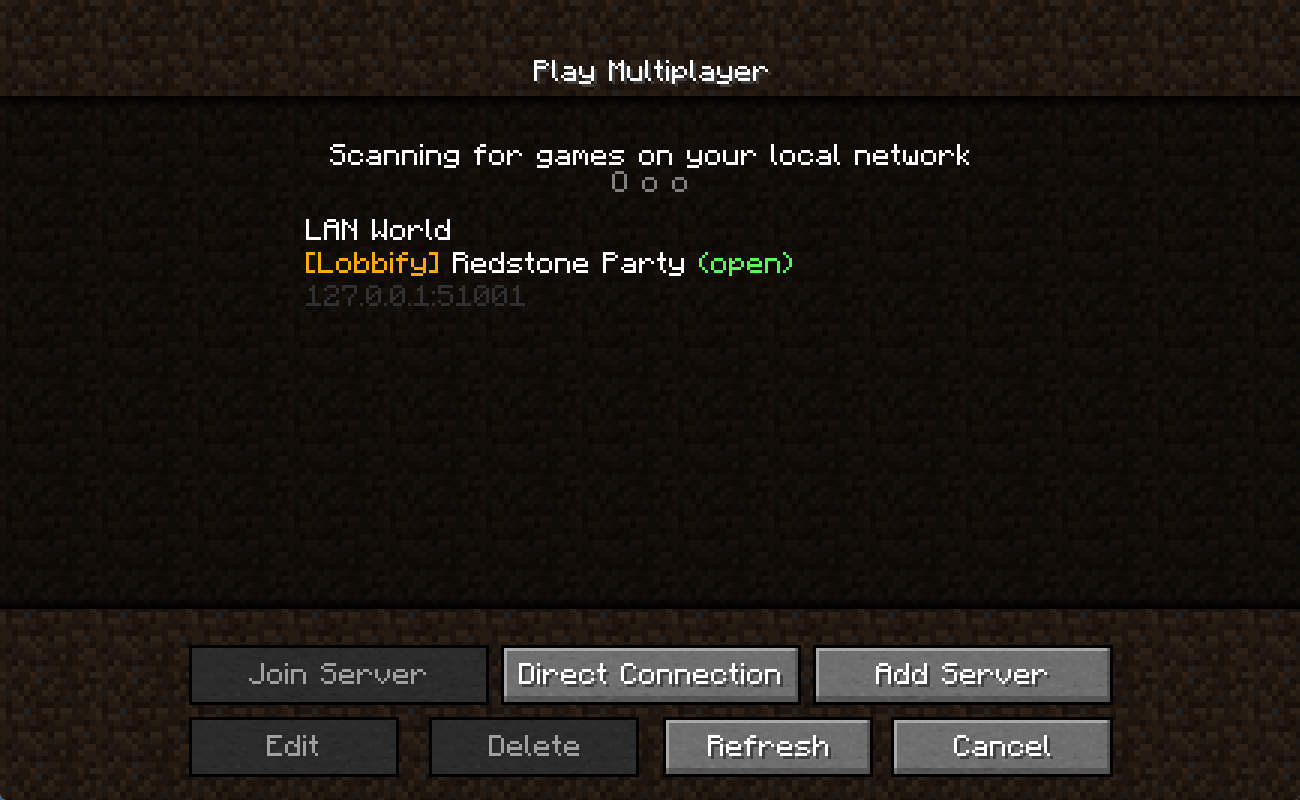
In Minecraft, open Multiplayer. The host's world appears on its own under the games found on your local network, labelled [Lobbify]. Select it and choose Join Server — you're in.
Can't see the room in Minecraft?
First, make sure the host has already pressed Launch and opened their world to LAN — the room won't appear until they have. Give it a few seconds and press Refresh on the Multiplayer screen. Check that you both show as connected in Lobbify's room. If it still doesn't show up, use Direct Connect and paste the address Lobbify lists in the room's session panel.